🤔 Why am I seeing this error?
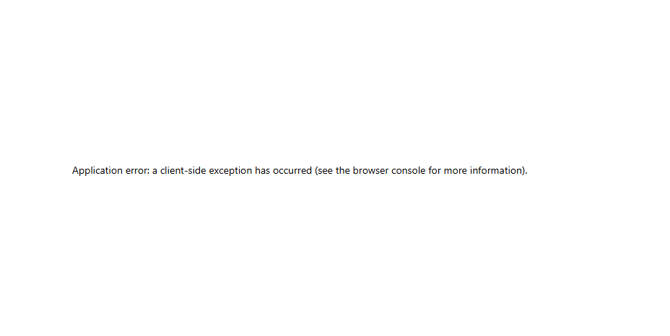
If you’re encountering a message like “Application error: a client-side exception has occurred,” it’s often caused by a caching issue in your browser. This can happen on both mobile and desktop devices when outdated or corrupted files prevent the app or webpage from loading correctly.
You may see an error like this:
🔧 How to Fix It
Clearing your browser cache is the most common way to resolve this issue. Follow the steps below for your device and browser:
📱iPhone (Safari)
-
Open the Settings app.
-
Scroll down and tap Safari.
-
Tap Clear History and Website Data.
-
Confirm the action.
- If you don't see that option, look for Advanced.
- Select Website Data.
- Tap Remove all Website Data.
🤖 Android (Chrome or Samsung Internet)
Open your browser.
-
Tap the three-dot menu (usually in the top-right).
-
Go to Settings > Privacy or Privacy and Security.
-
Tap Clear browsing data.
-
Choose a time range (e.g., “All time”).
-
Select Cached images and files (and optionally cookies).
-
Tap Clear or Delete.
💻 Microsoft Edge
-
Click the three dots in the top-right corner and select Settings.
-
Navigate to Privacy, search, and services.
-
Under Clear browsing data, click Choose what to clear.
-
Select a time range and check Cached images and files.
-
Click Clear now.
🌐 Google Chrome (Desktop)
-
Click the three-dot menu in the top-right corner.
-
Go to More tools > Clear browsing data.
-
Choose a time range (e.g., “All time”).
-
Check Cached images and files.
-
Click Clear data.
✅ After Clearing Cache
Once you’ve cleared your browser cache, reload the page. The error should be resolved. If the issue persists, try restarting your device, switching browsers, or contact Roshal Support.