Outlook App Instructions:
1) If not already installed, please install the Outlook for Android app from the Google Play Store and then open it.
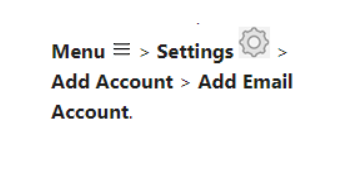
2) Tap Get Started if this is your first time using the app. Otherwise, add another email account by opening the menu and going to Settings > Add Account > Add Email Account.
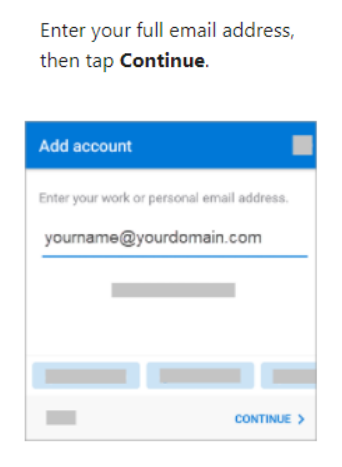
3) Enter your Roshal email address provided in the Welcome email. The yourdomain.com part will be @roshalimaging.com:
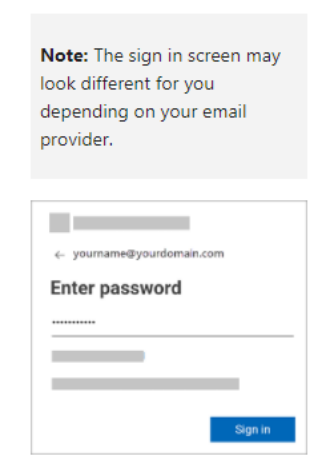
4) Enter your password and tap Sign in or Next:
Gmail App Instructions:
Step 1)
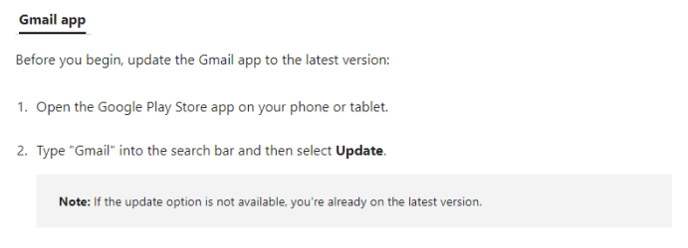
Step 2)
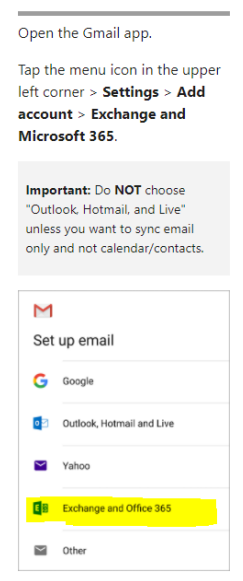
Step 3)
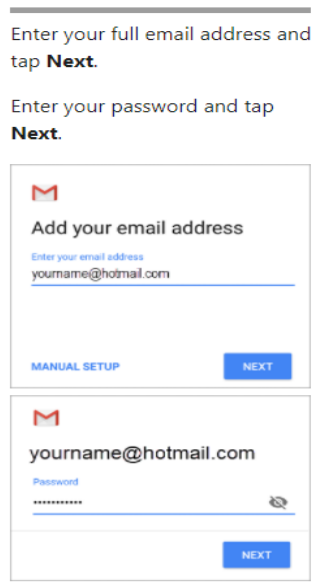
If this is the first time you have logged in to your Roshal email account, you will be prompted to change your password after the initial login is complete.
If you haven’t already done so, you will also be prompted to set up extra security
measures of a phone number and an alternate email address.
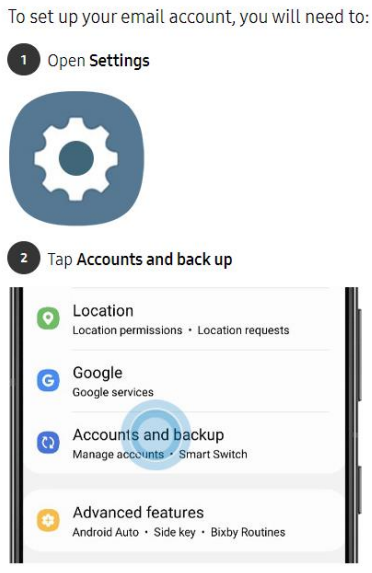
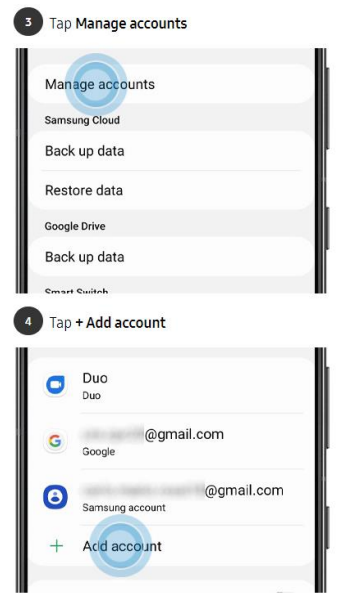
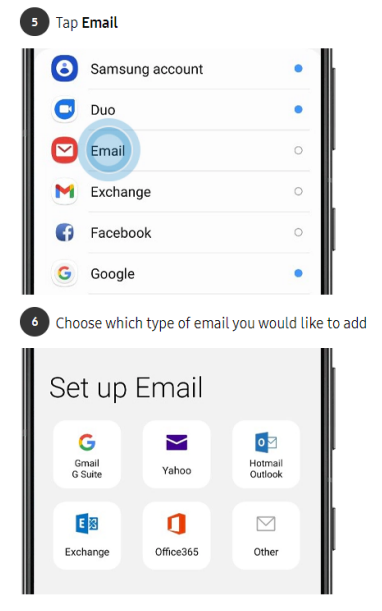
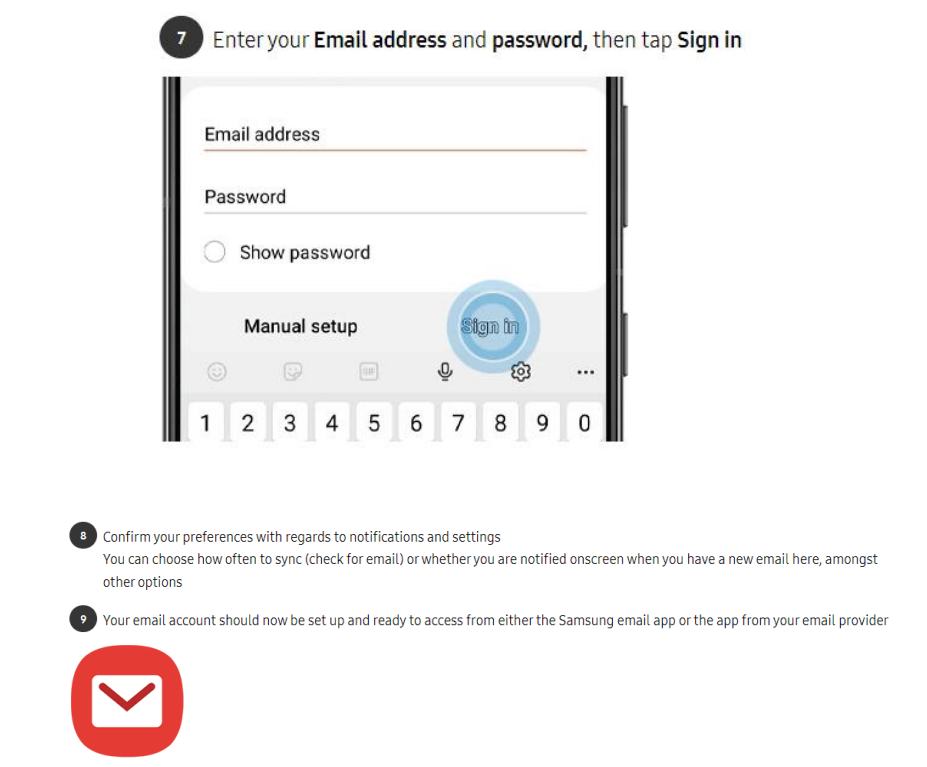
Samsung Email App Instructions: