Affected Users: Android users with phones on Android 16.0 operating system and One UI 8.0 operating system.
If you are an Android phone user seeing this error in your Roshal Health app, follow the instructions below to update your Do Not Disturb settings.
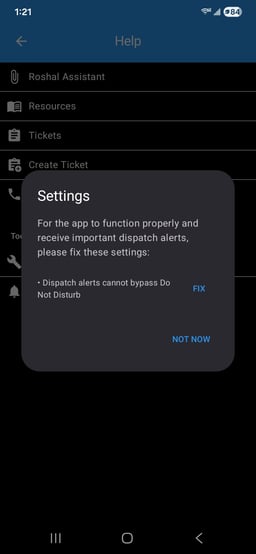
-
Open the Settings app on your phone
-
Select Notifications
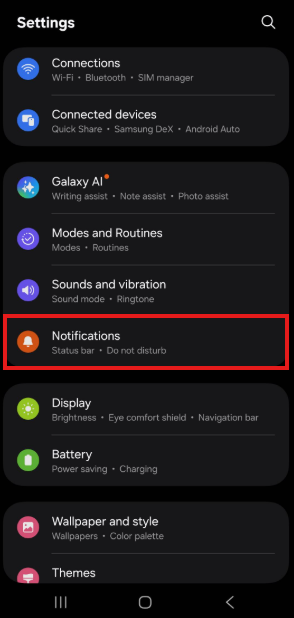
-
Select Do not disturb
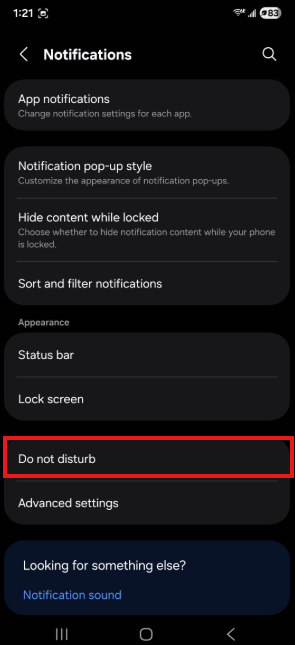
-
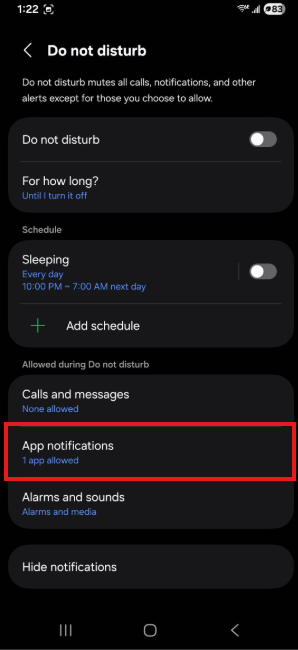
On that screen, look for App notifications. It might say None allowed
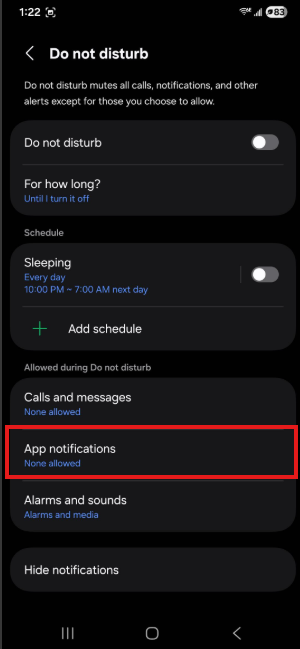
-
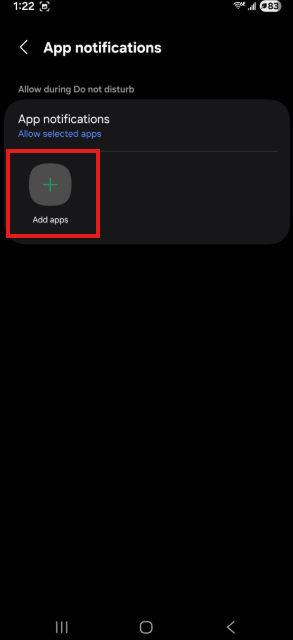
Select App Notifications, then hit +Add apps on the screen that comes up
-
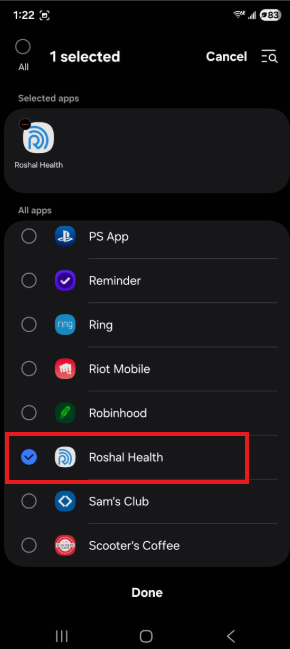
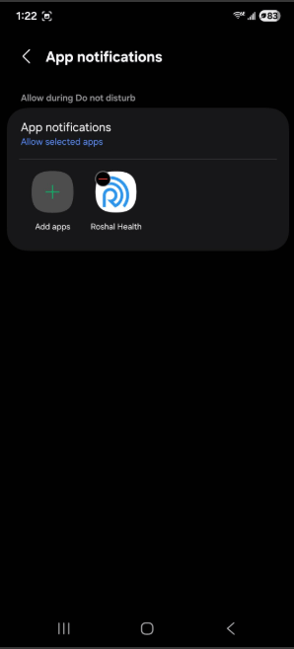
Search for and add the Roshal Health app, which should make it show up on the screen by +Add apps
-
Press the back arrow in the top left corner, then look at App Notifications again and it should say 1 app allowed. It may say more than one if you have allowed other apps to do this already.
-
Go back to the Roshal Health app, and the message should be gone!
-
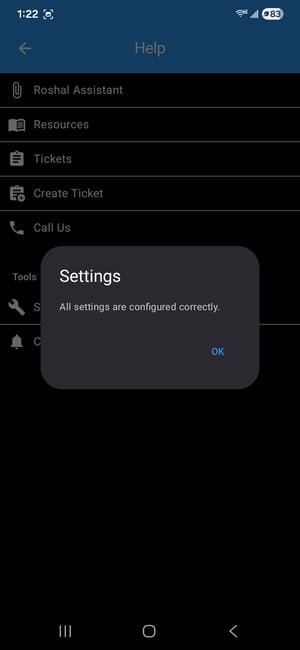
you can double check that by going to Menu in the Roshal Health app, then selecting Help -> Check Settings and it will tell you if everything is good now.
-
If you are still having issues after making that change, please contact the IT Helpdesk at it-helpdesk@roshalimaging.com .