You can identify a phishing email by looking for unusual sender addresses, generic greetings, urgent language, and suspicious links or attachments. If you spot one, use the Report Phishing button in Outlook to report it and remove it from your inbox.
How do you identify a phishing email?
Phishing emails often attempt to trick you into revealing personal information or downloading malicious software. Here are some common signs of phishing attempts:
- Unusual sender addresses or domains
- Generic greetings (e.g., "Dear Customer" instead of your name)
- Urgent language prompting immediate action
- Suspicious links or attachments
How do you report a phishing email in Outlook?
If you suspect an email is a phishing attempt, you can report it using the following steps:
- Open the email: In Outlook, locate the suspicious email in your inbox.
- Use the Report Phishing button:
- Look for the button with an envelope and a fishing hook icon:
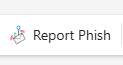
- This button can also be accessed from the add-ins section at the top of your Outlook window.
- Confirm reporting: After clicking the Report Phishing button, a confirmation prompt will appear asking you to verify the report. Click Report (or Yes) to submit it to your IT/security team.
- Email Removal: Once reported, the email will be removed from your inbox and moved to your Deleted Items folder.
If you have any questions or need further assistance, please contact your IT department.
Where can you get further help?
Being vigilant about phishing attempts is crucial for maintaining your security. Utilize the Report Phishing feature in Outlook to help protect yourself and your organization from potential threats.