-
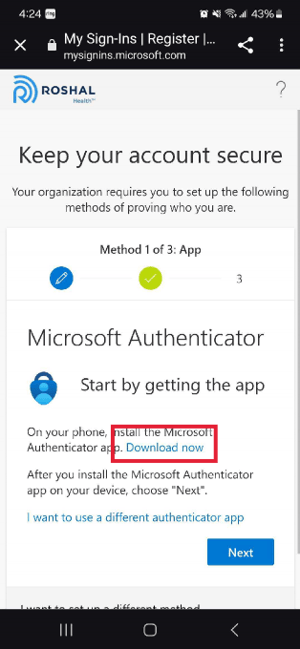
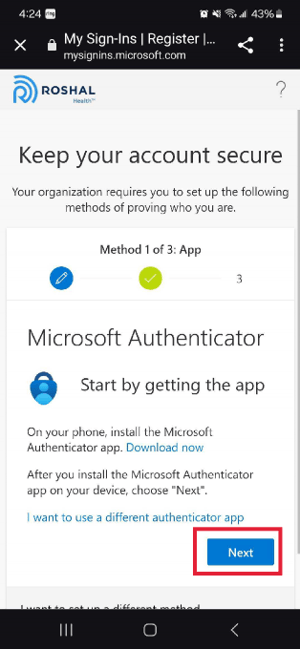
Click “Next” on the screen shown below.
-
You can download the Microsoft Authenticator by clicking the blue “Download Now” text. If you already have the Microsoft Authenticator, skip this step and click “Next”. If you have another Authenticator you’d like to use, such as the Google Authenticator, click “I want to use a different authenticator app”.
-
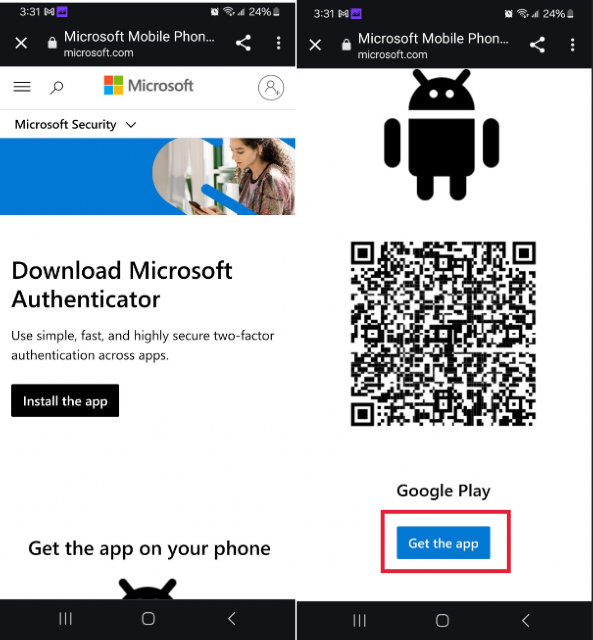
If you need to download the Microsoft Authenticator, after clicking “Download Now”, you’ll be directed to the screen below. Scroll down to where it says “Get the app” as shown below, and click the button. You’ll be redirected to the Google Play store to download the app.
-
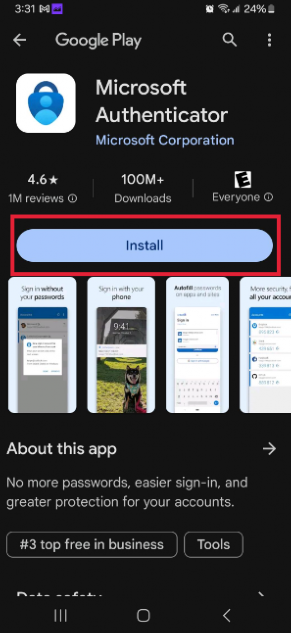
Click “Install” to download the app from the Play Store.
-
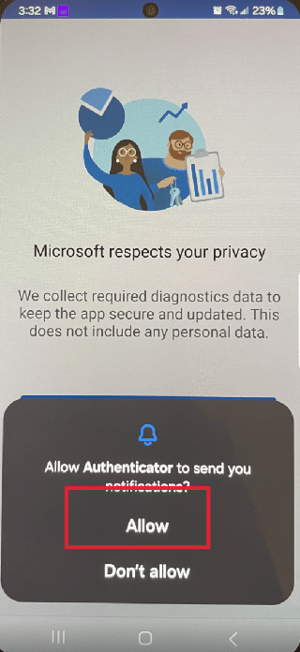
Open the Microsoft Authenticator app after it has been installed. Click “Allow” to allow the app to send you notifications.
-
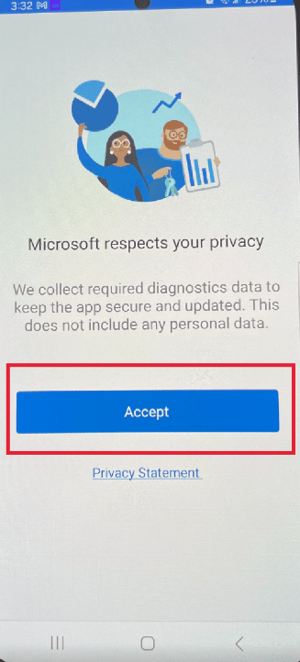
Click “Accept” to agree to Microsoft’s privacy statement.
-
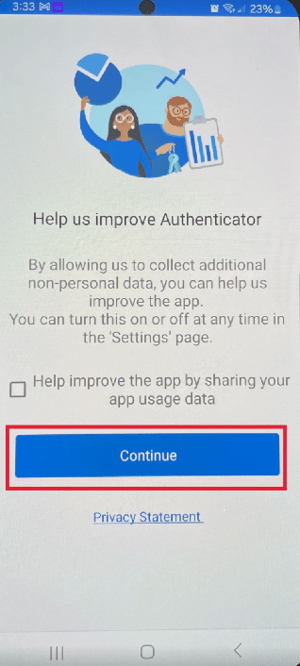
Click “Continue” on the screen shown below.
-
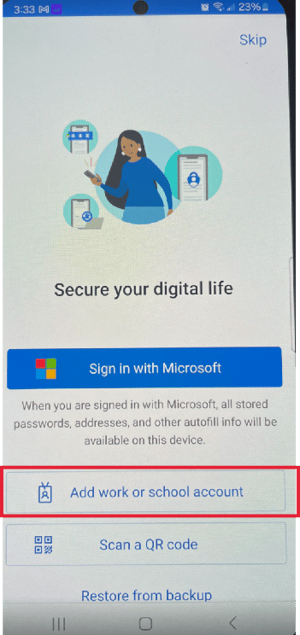
Now click “Add a work or school account” on the screen shown below.
-
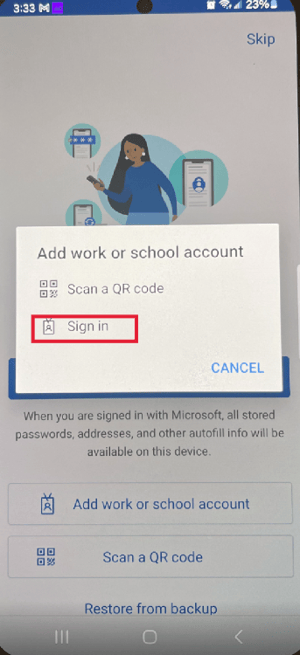
Click “Sign In” on the notification popup shown below.
-
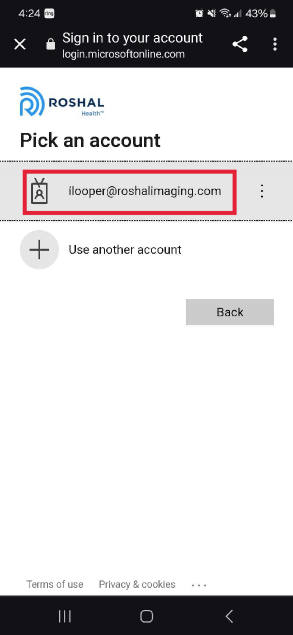
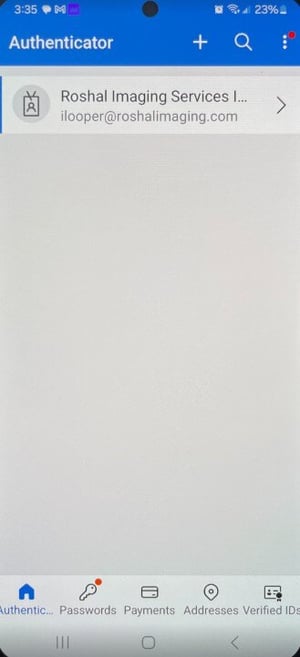
Sign in with your Roshal email address and password. You should be redirected to the screen shown below, and your authenticator is now setup.
-
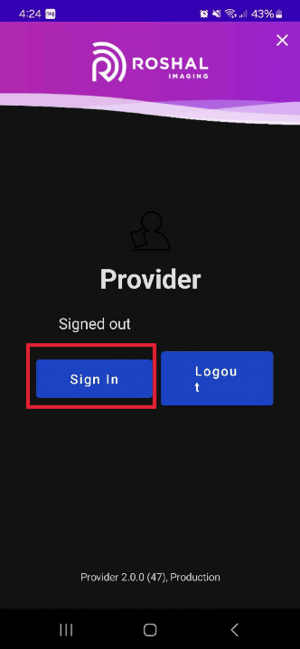
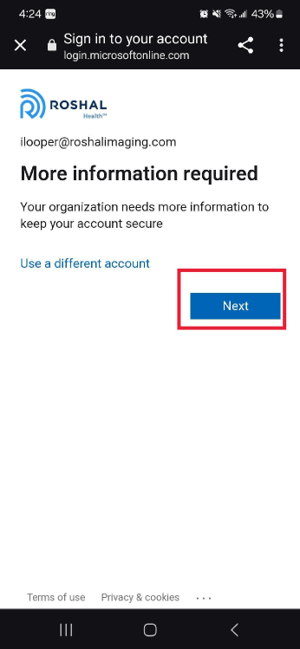
Now go back to your organization's app (referred to here as the "Provider app") and sign in again. Click “Next” when prompted for more information — this screen is similar to the one in Step 3. Then click “Next” on the screen shown below.
-
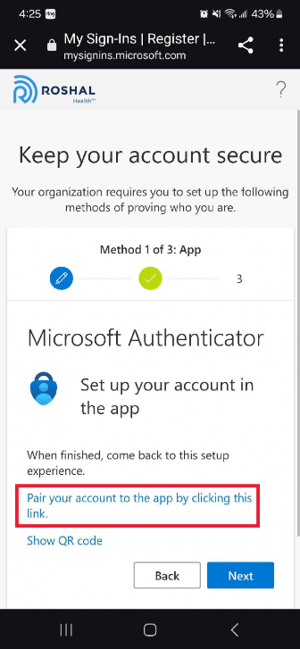
Click the blue text that says “Pair your account to the app by clicking this link” on the screen shown below.
-
You will see a screen displaying a two-digit number — this is Microsoft Authenticator's number matching prompt. A push notification will appear on your phone asking you to approve the sign-in. Tap the notification to open it.
-
-
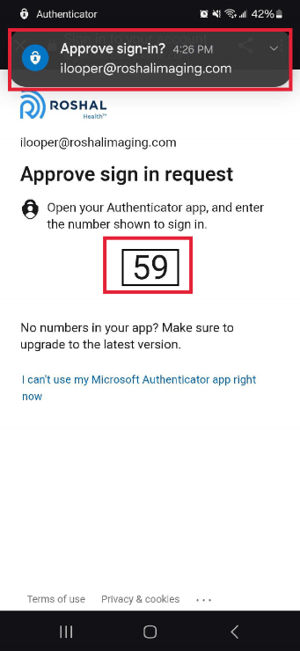
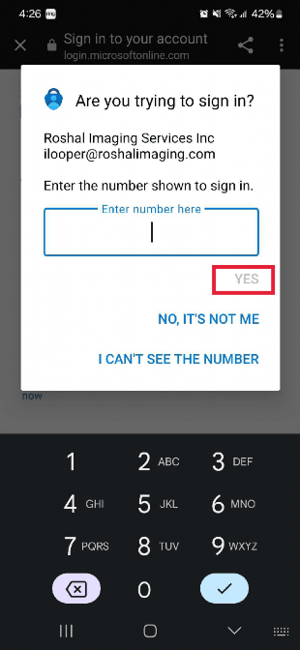
- Now enter the number from your screen above into the field shown below. Click “Yes” to proceed.
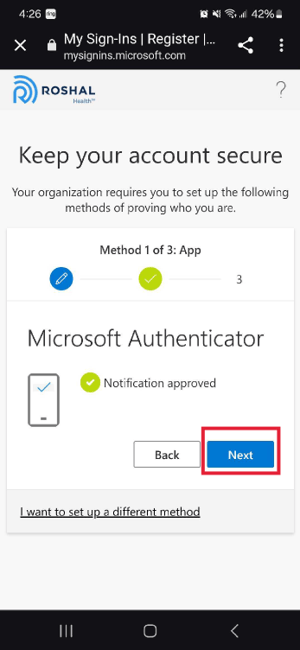
- You should now be redirected to this screen with a “Notification Approved” message. If not, press the “Back” button below to try again. Click “Next” to proceed, and your authentication should be complete!