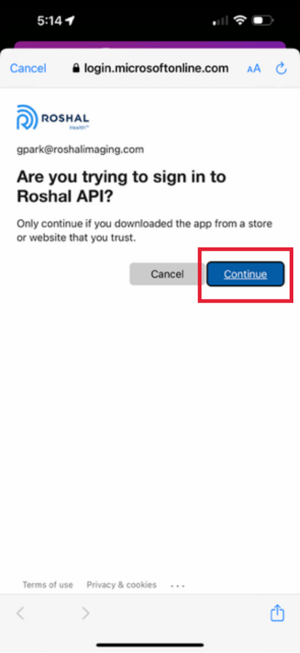
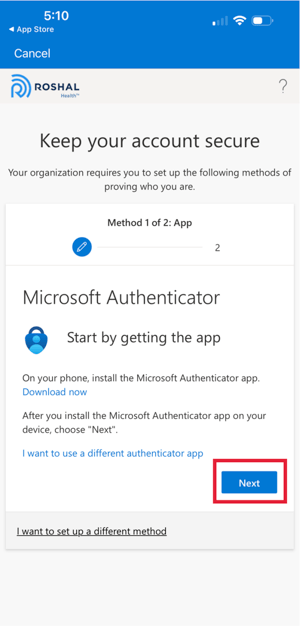
1. Open up your Provider app and login as normal with your username and password. This web browser will pop up on your screen asking for more information. Click “Next”.
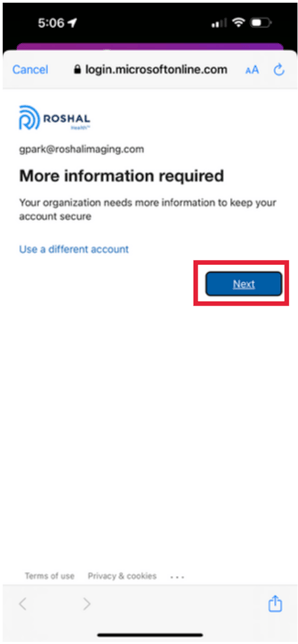
2. You can download the Microsoft Authenticator by clicking the blue “Download Now” text. If you already have the Microsoft Authenticator, skip this step and click “Next”. If you have another Authenticator you’d like to use, such as the Google Authenticator, click “I want to use a different authenticator app”.
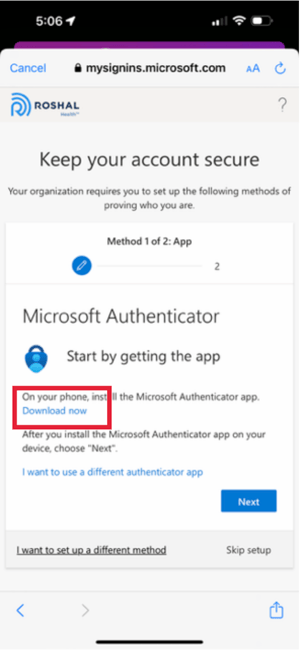
3. If you need to download the Microsoft Authenticator, once you click the “Download Now” link, you’ll be presented with this screen. Scroll down below where it says “Get the app on your phone”, and you’ll see a “Download Now” button. Click that and you’ll be redirected to the App Store to install the app.
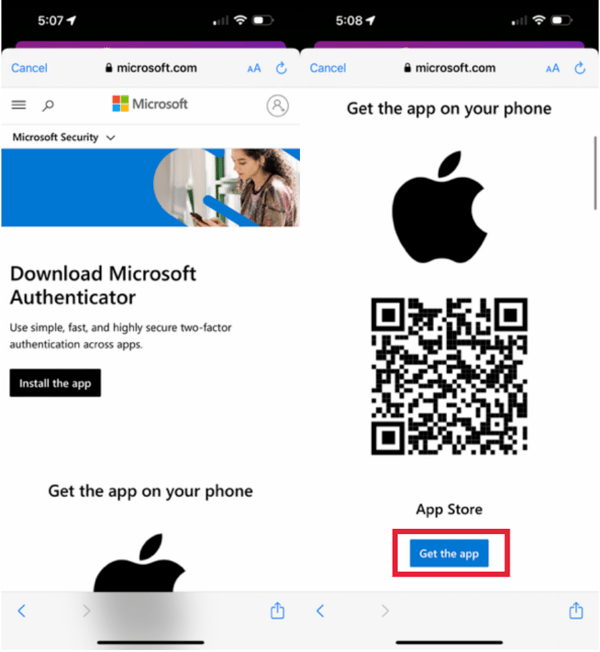
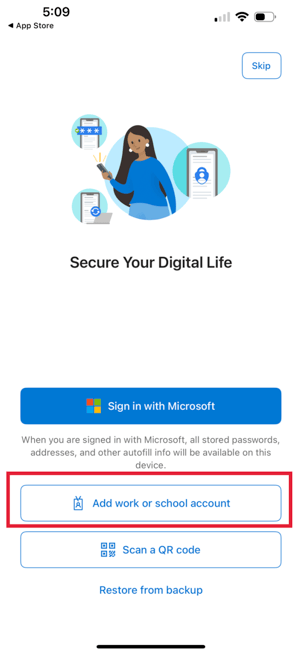
4. Open the Microsoft Authenticator app after it’s installed. You’ll be presented with this screen. Click on the “Add a work or school account” button.
5. Click the “Next” button shown in the image below.
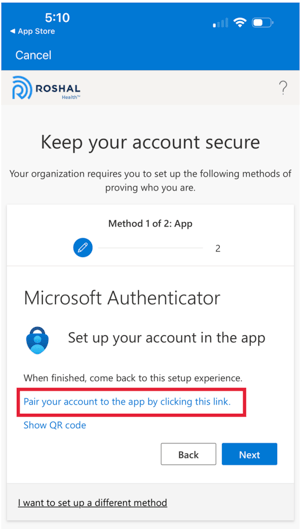
6. Click the blue text that says “Pair your account to the app by clicking this link”.
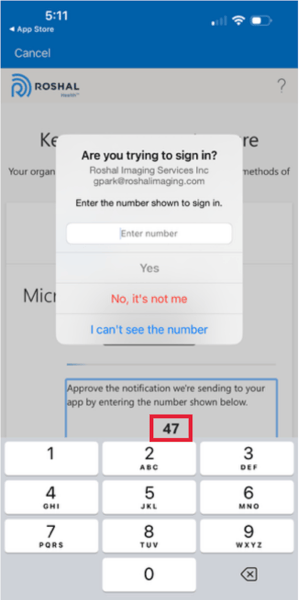
7. You’ll be prompted with a screen asking if you’re trying to sign in. Please approve the notification by entering the number shown on your screen. In the example below, this is “47”. Then click the “Yes” button on the notification popup to proceed.
8. If you’ve done it correctly, you’ll see the screen below with a “Notification Approved” message. If not, you may need to click the “Back” button and try again.
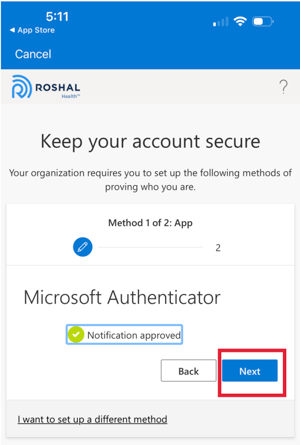
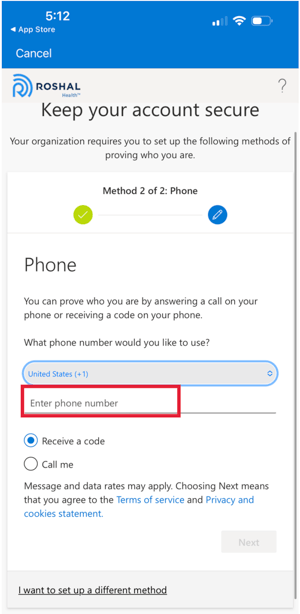
9. Now you’ll also need to register your phone number to finish the process. Please enter your phone number in the screen shown below, and choose to either receive a code via text-message or phone call. Then click the “Next” button.
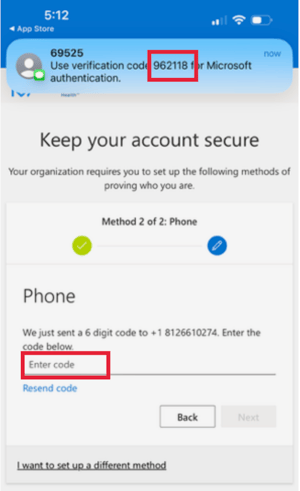
10. Once you’ve received the code (Shown below is the text-message method), enter in the verification code (in my case 962118) into the field and click “Next”.
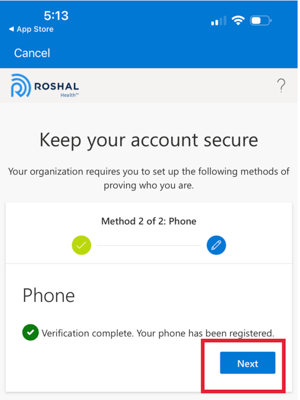
11.Your phone should now be registered as well. Click the “Next” button on the screen below, then click “Done” to finish up.
12.Now go back to the Provider App, and sign in once again. You’ll be prompted with the screen below. Please click “Continue”.